
Topic – Video Player/Screencasts
Post Reading Time – 25 Minutes
I wrote this ScreenPal Review because a lot of screen recording tools look quite good at first, then start to get difficult when you actually need to use them properly. You start off thinking you have found something easy, then you run into limits on recording time, audio, editing, exports, or sharing, and suddenly the whole thing feels a lot more annoying than it did at the start.
ScreenPal is a name you will see a lot if you’re looking for a way to record tutorials, lessons, walkthroughs, feedback videos, or training content. Some people still know it by its old name, Screencast-O-Matic, so it’s worth mentioning that this is the same platform under a new name. It gives you screen recording, video editing, screenshot tools, hosting, sharing, and a few extra features around teaching and team use, all in one place.
At the same time, that doesn’t mean everything about it is great. Some users like how easy it is to use. Others get fed up with the limits on the free plan, the lack of computer audio, the pricing changes, or the odd bug or export problem.
So in this review, I want to go through ScreenPal from both sides and look at what it offers, where it gets annoying, and who I think it is most useful for. You can also take a look at the official ScreenPal website here to check the platform details and current plan options for yourself.
Summarize This Content Using AI
TL;DR
ScreenPal Review An Honest Look At The Features And Limits
ScreenPal is a screen recording tool that also includes editing, screenshots, hosting, sharing, and a few extras for teachers, trainers, support teams, and anyone creating tutorials or walkthroughs. This review looks at both the good and the annoying parts, including the free plan limits, recording and audio restrictions, editing tools, pricing, and the kind of user it is most likely to be good for. It also mentions the old Screencast-O-Matic name, which still causes some confusion, and points out that while ScreenPal can be very useful for everyday video work, it is not the best choice for everyone.
A Quick Summary of ScreenPal
Here is a quick look at ScreenPal before I go into it in more detail.
- Product Name – ScreenPal, formerly Screencast-O-Matic.
- Main Users – Teachers, trainers, course creators, support teams, marketers, onboarding teams, and anyone making tutorials, walkthroughs, lessons, or feedback videos.
- Main Features – Screen and webcam recording, video editing, screenshot capture, video hosting and sharing, folders, channels, quizzes, analytics, AI tools, cloud storage, and collaboration features.
- Supported Devices – Windows, Mac, iPhone, iPad, Android, Chromebook, and a Chrome extension for quick browser based recording.
- Pricing – A free plan with clear limits, plus paid plans for Solo, Team, Business, and Education users.
- Free Plan Limitations – 15 minutes per recording, restricted computer audio, some editing limits, and mixed user confusion around older and current feature details.
- Common Positives – Easy to use, good value for many users, editing and sharing in one place, free hosting included, sharing options, privacy controls, and a setup that appeals to teachers and trainers.
- Common Frustrations – The 15 minute limit, restricted computer audio on the free plan, plan confusion, pressure to upgrade, mixed support experiences, some Mac related issues, and occasional lag, crashes, or export problems.
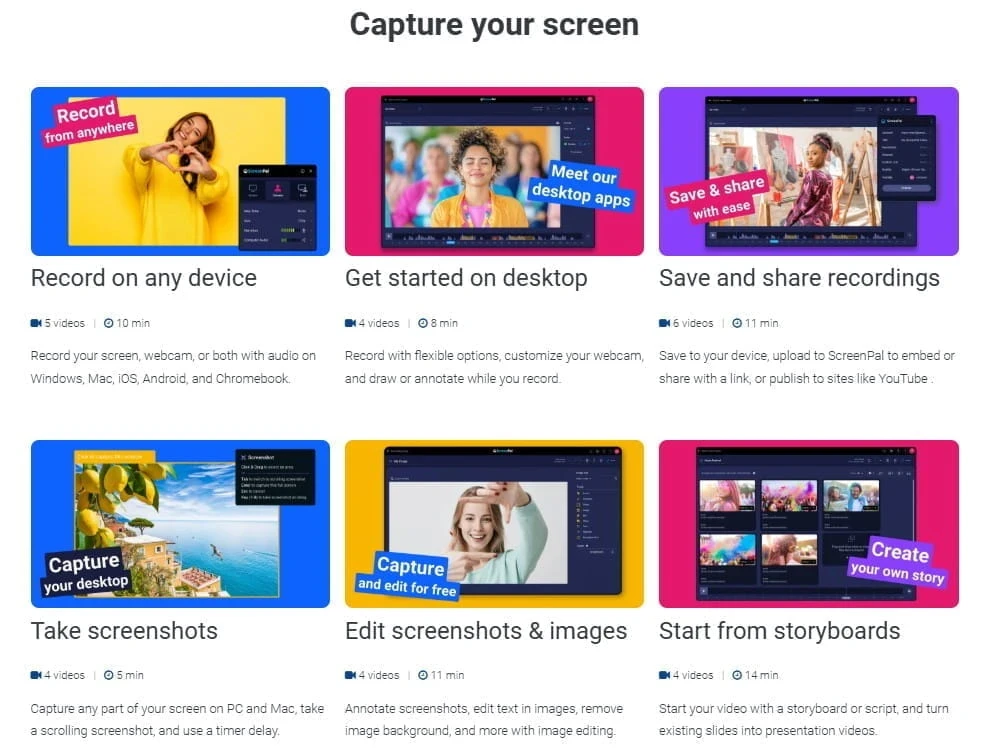
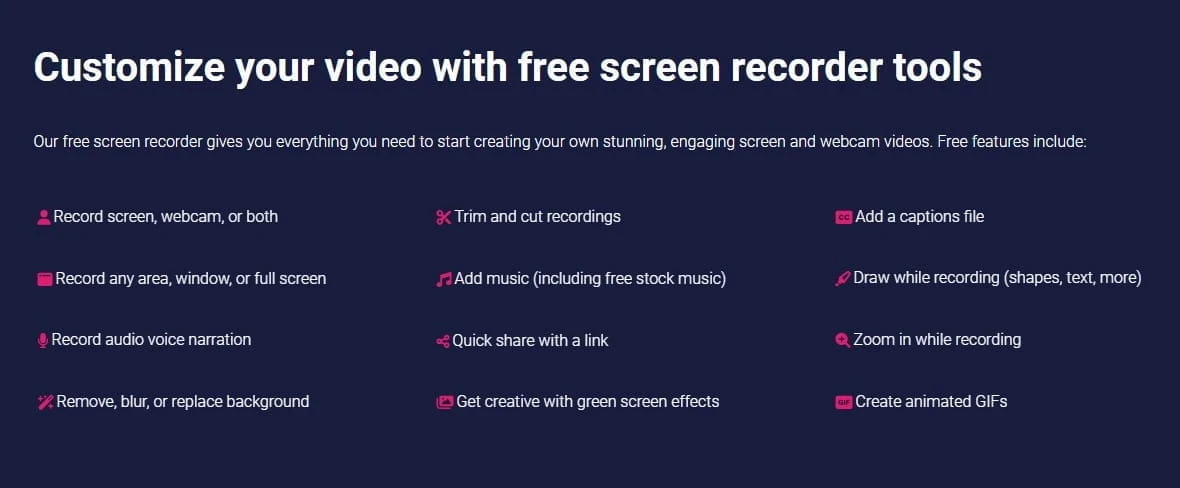
A quick look at some of the main tools and uses ScreenPal highlights on its website.
Why People Choose ScreenPal
ScreenPal appeals to a lot of people because it is not only for screen recording. It also includes editing features, screenshots, hosting, and sharing in one place, and that is a big part of why so many teachers, trainers, support teams, and course creators look at it in the first place.
One of the main reasons people like it is that it feels easy to get started with. The layout does not seem to put people off, and even beginners usually get the idea of it quite quickly. If you need to record a lesson, a walkthrough, a feedback video, or a short presentation, it looks like the kind of tool most people can start using quite easily.
The recording side is flexible enough for everyday use too. You can record your full screen, a specific window, or only part of the screen. You can also record your webcam, your screen, or both together. That gives people enough to make tutorials, onboarding videos, classroom content, and step by step help videos.
Why The All In One Setup Appeals To People
The screenshot side adds more to it as well. You can capture images, mark them up with arrows, boxes, text, blur, highlights, and numbered steps, then crop or resize them before sharing. That’s good for guides, support replies, and training material where a still image can sometimes explain something faster than a video can.
The editing tools are another reason people keep looking at it. ScreenPal gives you the basics people usually need for this kind of work, like trimming, cutting, blur effects, zooming, overlays, captions, music, transitions, speed changes, and GIF creation.
It’s not the sort of editor people go to for advanced production work, but it does cover a lot of the day to day jobs that come with making tutorial style content.
Hosting and sharing are also part of the appeal. Instead of only recording a video and then needing somewhere else to keep it, ScreenPal also gives you cloud hosting, folders, channels, privacy settings, share links, embeds, and password protection.
For anyone making regular training videos, support guides, or lesson content, that can save a lot of messing around with separate tools.
Where ScreenPal Is Commonly Used
ScreenPal is mostly used in situations where someone needs to show a process clearly and share it quickly with other people. This could be a recorded lesson, a support reply, a staff training video, an onboarding guide, or a walkthrough for a client or team member.
One area where it seems popular is education. Teachers can use it to record lessons, weekly updates, tutorial videos, or feedback for students, then share that content across different devices. That is useful when a video explains something more clearly than a written note or a worksheet.
It’s also used for staff training and onboarding. Instead of explaining the same task again and again, someone can record it once and keep it ready for future use. That can help with internal processes, software training, and step by step instructions where people need to see what to do.
Support is another good use case. A short video or annotated screenshot can explain a fix faster than a long email, especially when the problem is visual. That’s one reason tools like this appeal to support teams and anyone who regularly helps other people through systems or tasks.
It can also be good for demos, presentations, and client walkthroughs. When someone needs to show a process, explain a product, or guide someone through a task, ScreenPal gives them a way to record it, make a few edits, and send it on from the same place.
ScreenPal Features That Matter Most
One reason ScreenPal appeals to a lot of people is that it tries to keep a lot of useful tools all on one platform. Instead of only being able to record your screen, it also offers editing, screenshots, hosting, sharing, and a few extra features that are good for training, teaching, and team communication.
That is one reason people keep looking at it when they want something more complete than a simple recorder.
Recording And Audio
Recording is still at the centre of the platform. ScreenPal lets you record your screen, your webcam, or both together. You can capture the full screen, a single window, or only part of the screen, which is useful when you only want to show a certain area or keep private information out of view.
That gives people enough to make all sorts of practical videos, such as tutorials, software walkthroughs, lessons, onboarding clips, presentations, and support replies. For many people, that is more than enough for everyday use.
The free plan is good for testing the platform and making shorter videos, which I think is a fair starting point. If someone needs longer recordings, computer audio, or more to work with, that’s where you’ll need to consider one of the paid plans.
I don’t think it’s reasonable to expect every feature for free, but it’s still worth knowing where those limits are before you rely on it too heavily.
On the free plan, recordings are capped at 15 minutes, and computer audio is restricted, so it is better for shorter videos unless you move onto a paid plan.
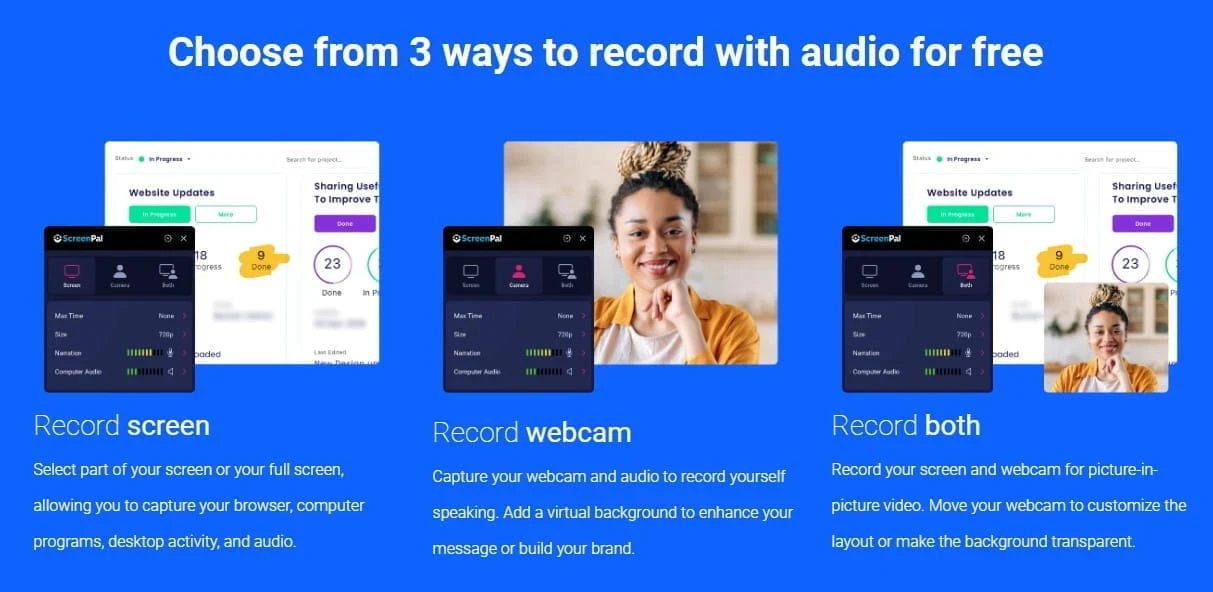
ScreenPal showing the main recording choices for screen, webcam, or both together.
Editing And Planning Tools
Editing is another thing that makes ScreenPal appealing. From what I found, it covers the kind of editing most people need for tutorial style content. You can trim clips, cut out mistakes, add blur effects, place text and shapes on screen, zoom in on parts of the video, adjust speed, add transitions, include music, and create captions or subtitles.
That doesn’t make it a high end editor, and it should not be judged as one. It is more the kind of editor people use to clean up recordings, make instructions clearer, and get a video ready to share from the same place. For teachers, trainers, support staff, and business users, that’s usually enough.
There is also a planning side to it through Story or Storyboard mode. That can help people script a video, lay out the order of sections, arrange images or slides, and keep the recording on track. For longer lessons or step by step training videos, that can help cut down on rambling and make the final video easier to follow.
Screenshot Tools, Hosting, And Sharing
ScreenPal also includes a screenshot tool, which adds more value than people might expect at first. You can capture a full screen, a window, or a selected area, then mark it up with arrows, numbers, highlights, text, blur, and other annotations. That is good for guides, support replies, training documents, and any situation where a still image can explain something faster than a video.
Hosting and sharing are also a big part of the product. ScreenPal also gives users a place to upload videos, organise them, and share them more easily. Folders help with internal organisation, while channels are more useful for grouped video collections that are meant to be shared with an audience.
There are also privacy settings, share links, embed options, password protection, thumbnails, and descriptions. That is useful for anyone creating regular training videos, lesson content, or support material.
Quizzes, AI Tools, And Device Access
ScreenPal also includes a few extra features that make it good for education and business use. Quizzes, polls, and viewing data can be useful for teachers who want to check understanding or for teams that want more than a simple video link. These features are more tied to certain paid plans, but they do help show that ScreenPal is trying to cover more than just recording videos.
The AI tools are part of that too. These include things like captions, transcripts, summaries, titles, chapter suggestions, quiz generation, voiceover tools, translation, and audio cleanup. I don’t think the AI side should be the main reason to use ScreenPal, but it can save time on jobs that would otherwise take longer to do by hand.
Device support is another plus. ScreenPal is available across Windows, Mac, iPhone, iPad, Android, and Chromebook, and there is also a Chrome extension for quicker browser based recording. That can be useful for people who use different devices during the day or need to create and share content from different places.
ScreenPal Pricing. Free Vs Paid Plans
Pricing Breakdown
As I mentioned earlier, ScreenPal has a free plan, and that is probably where most people start. According to ScreenPal’s official plans page, the free plan includes recording, sharing, hosting, and editing, with recordings capped at 15 minutes each. The official recorder page also says no account is required and no watermark is added on the current free recorder page.
Once you move beyond that, the paid plans are there for people who need more. ScreenPal’s official plans page says paid plans remove the recording time limit and add more features around editing, captions, interactive video, AI tools, privacy, and team use.
Team and education options are also listed separately for organisations that need admin controls and broader management features.
How Does The Free Plan Hold Up?
I think the free plan looks fair for what it is. It gives people a proper way to try the platform, record shorter videos, and get used to how everything works before paying for anything. For quick walkthroughs, short lessons, simple feedback videos, or basic support clips, that may be enough for quite a while. ScreenPal’s own pages say free users can record up to 15 minutes at a time and use free editing, screenshots, and hosting.
Where people start to hit barriers is when they want longer recordings, computer audio, or more editing control. That’s really the point where the paid plans start to come into play.
There is also some confusion online about what the free plan includes, especially around watermarks and feature limits. A lot of that seems to come from older Screencast-O-Matic information still being indexed or quoted.
So if a specific feature is important to you, I would check the current ScreenPal plan details directly rather than assuming an older review is still accurate. ScreenPal’s current official pages are the safest place to verify that.
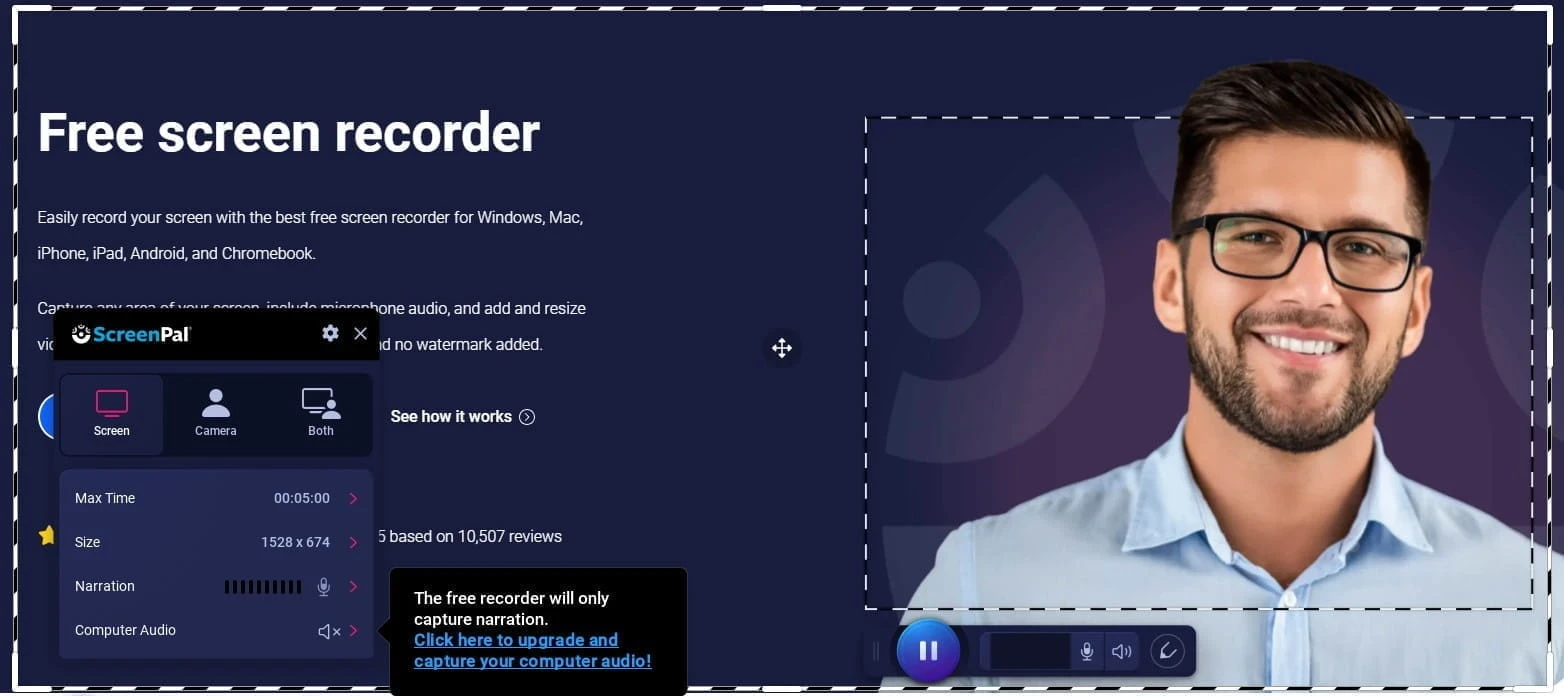
ScreenPal free recorder screen showing one of the limits users may run into on the free plan.
Is The Value There?
I think the value depends on how often you’re going to use it and what sort of videos you need to make. If you only need short recordings now and then, the free plan may be enough. If you’re making regular lessons, training videos, walkthroughs, or support content, the paid plans will be more practical because you are getting recording, editing, hosting, and sharing together in one service.
That is where ScreenPal starts to become more practical for regular use.
You can check the current ScreenPal plans here if you want to look at the latest pricing and features for yourself.
What I Like About ScreenPal
ScreenPal does a lot of things in one place, and that’s a big part of why people still rate it highly. It is clearly aimed at people who want to record, edit, organise, and share videos in a way that is easy to manage. These are the main positives that stood out to me.
- Easy to get started with – One of the strongest points with ScreenPal is how easy it looks to pick up. A lot of users seem to get comfortable with it quite quickly, even if they have not used this kind of tool before.
- Works across different devices – ScreenPal is available on Windows, Mac, iPhone, iPad, Android, and Chromebook, which is good for people who do not always work from the same device.
- Editing tools cover most everyday jobs – The editor is not aimed at advanced video production, but it does include the sort of tools many people need for lessons, tutorials, walkthroughs, and support content.
- Sharing and organisation are built in – Folders, channels, privacy settings, embed options, and direct links make it easier to keep videos organised and ready to send out.
- Useful for teaching and training – Quizzes, polls, analytics, and other learning features give it more use for education and staff training than a basic screen recorder.
- The free plan is still a decent starting point – For shorter videos and simple use, the free version gives people a proper chance to try the platform before paying.
- No watermark on the current free recorder page – That is a plus for anyone who wants their videos to look clean, especially when using the latest free recorder version from the official site.
The Main Drawbacks To Know About
At the same time, ScreenPal isn’t perfect, and I think this part matters just as much. A lot of the weaker points are not a reason to avoid it, but they are the sort of things that can start to annoy people once they use the platform more regularly.
- The 15 minute limit on the free plan will not suit everyone – It’s fine for short clips, but anyone making full lessons, longer demos, or more detailed presentations will reach that limit quickly.
- Computer audio is restricted on the free plan – If someone needs to record system sound, app audio, or video playback, they will need to look at the paid plans.
- The editing side has limits – It covers everyday editing well enough, but it is not built for advanced production work, deeper timeline editing, or heavier video editing jobs.
- Performance is not always perfect – Some users report lag, crashes, or export problems, especially on older machines or with larger files.
- Exports and uploads can take time – That may not be a problem on smaller jobs, but bigger projects can feel slower to process.
- Plan details can still confuse people – Some of that comes from older Screencast-O-Matic information still being out there, and some of it comes from changes in plan names and feature placement.
- Support feedback is mixed – Some users seem happy with support, while others mention delays, especially with billing or account related problems.
Trust, Billing, And Support Experience
Billing And Subscription Info
Billing is one of those areas where it is worth checking the details properly before you pay for anything. ScreenPal’s official plans page says paid plans are billed annually, and its terms say cancellations take effect at the end of the current billing period rather than straight away. The same terms also say fees are generally non refundable unless the law in your area says otherwise.
That doesn’t mean there is anything unusual going on here, but it does mean you should read the plan details carefully before buying, especially if you are looking at older Screencast-O-Matic information at the same time. Some online user comments mention confusion around plan changes, paid features, or billing issues, while others seem perfectly happy.
As far as trust goes, ScreenPal has been around for a long time, and I’ve not come across anything that would make me treat it as a risky service. I would still handle it the same way I would any subscription platform though and check the current plan details, billing terms, and cancellation rules before signing up.
Customer Support Experience
Support looks mixed rather than clearly strong or clearly poor. ScreenPal does have an official help centre and support structure in place, which is a good sign.
Looking at public feedback, some users speak positively about the support they received, while others mention delays or poor handling, especially when billing or account problems are involved. Software Advice shows generally positive review scores overall, while Trustpilot includes a more mixed set of experiences.
So my view is that support probably should not be treated as a major selling point, but I would not treat it as a major warning sign either. It looks more like one of those areas where routine help may be fine, while account or payment issues can be slower or less consistent depending on the case.
Who I Think ScreenPal Is Best For
I think ScreenPal is best for people who need to make clear screen based content on a regular basis and want everything kept simple. That includes teachers recording lessons or feedback, trainers putting together guides, support teams showing people how to fix something, and business users making onboarding or process videos.
It is also good for individual users who like the idea of recording, editing, hosting, and sharing from one place rather than piecing things together across different tools.
I don’t think it is the best choice for everyone though. If someone needs more advanced video editing, motion graphics, deep timeline control, or polished production work, they will probably want something built more for that kind of job.
The same goes for people who want transcript based editing, fully open source software, or very specific recording setups. Also, if someone mainly creates long form videos and wants to stay on the free plan, the 15 minute recording limit is likely to become annoying quite quickly.
Part of ScreenPal’s editor showing the sort of built in tools available for everyday video editing.
How ScreenPal Compares To Other Tools
I think ScreenPal sits in the middle. It is not only a quick video message tool, and it is not a full scale video editing suite either. It is more for people who want screen recording, editing, hosting, and sharing kept together in one place.
Loom is more focused on quick video messages and fast sharing for teams. It also offers editing, AI features, and screen recording, but its free plan is capped at 25 videos and 5 minute screen recordings, so it feels more for short communication than longer teaching or training content.
Camtasia is more editing focused. TechSmith positions it as an AI powered screen recorder and video editor, and it’s the sort of tool people look at when they need deeper editing, more polished output, and stronger production features than a simpler recorder gives them.
Snagit is more for screen capture, screenshots, and markups. TechSmith describes it as a tool for screen capture and screen recording, but its strongest angle is still image capture, annotations, and how to guides rather than deeper video work.
Where ScreenPal Sits Against These Tools
Descript is a different type of tool again. Its main angle is editing video and audio by editing text, which makes it more appealing for people working with podcasts, transcripts, captions, and AI based editing workflows.
Wistia is worth mentioning too, although it is aimed at a different type of user. Wistia is more focused on video hosting, marketing, and business use than screen recording. If you want to look at that side of things more closely, you can read my Wistia Review here.
So overall, I think ScreenPal is more likely to suit people who want recording, editing, and sharing in one service, especially for lessons, walkthroughs, support content, and training videos. If someone wants faster team messaging, deeper editing, stronger screenshot tools, transcript based editing, or video marketing features first, one of the other options may suit them better.
What I Think Could Be Better
One thing that still seems to cause some confusion is the amount of older Screencast-O-Matic information still floating around online. If someone lands on an older review, forum thread, or tutorial first, they may come away with the wrong idea about features, plan names, or limits before they even reach the current ScreenPal pages.
I also think ScreenPal could do a bit more to help older users who remember the old branding. When a service changes its name and updates its plans, some people are naturally going to need time to adjust. A few clearer reminders for older users would help with that.
Another area that still seems worth improving is performance on larger files. Export speed, lag, and occasional stability issues still come up in user feedback, especially when people are working on bigger projects.
Even with those points in mind, I still think ScreenPal has a lot going for it.

Frequently Asked Questions – FAQs
ScreenPal is a strong option for people who want screen recording, editing, hosting, and sharing in one place. It is especially suited to lessons, walkthroughs, support videos, and training content. It is less suited to people who want advanced video production tools or deeper editing control.
Yes, ScreenPal has a free version. According to the official plans page, the free plan includes a 15 minute recording limit, 10 hosted videos, easy video editing, screenshot editing and sharing, and 5 video quizzes. The official recorder page also says no account is required and no watermark is added on the current free recorder page.
ScreenPal has a free plan, along with paid plans for users who need longer recordings, more editing features, AI tools, and team options. Since pricing can change, it is best to check the official ScreenPal plans page for the latest plan details and current prices.
ScreenPal’s privacy policy says it takes part in the iKeepSafe Safe Harbor program. In simple terms, that means it has a privacy certification tied to COPPA, which is the U.S. law covering children’s online privacy. The policy also says iKeepSafe granted ScreenPal the COPPA Safe Harbor seal, while the official recorder page says the screen recorder is safe to download and use.
ScreenPal and Loom overlap, but they are aimed at slightly different uses. Loom is more focused on quick video communication, and its free plan is limited to 25 videos and 5 minute screen recordings. ScreenPal places more emphasis on editing, screenshots, hosting, quizzes, and training style content, so it is more likely to appeal to people making lessons, walkthroughs, and support videos.
My Experience With Screencast-O-Matic Before The Rebrand
My own experience with this platform goes back to when it was still called Screencast-O-Matic. I used it years ago and thought it was good at the time, especially for how easy it was to get started with. It didn’t feel difficult to use, which was important for something built around screen recording and simple video creation.
The main thing that put me off was the free plan. The time limits were not enough for what I wanted at the time, and at that point paying for a membership did not feel worth it for me. So although I had a decent impression of it back then, I stopped using it and have not used the current ScreenPal version since the rebrand.
That means this review is not based on recent hands on use of ScreenPal itself. It is based on my past experience with Screencast-O-Matic, along with current research into ScreenPal’s features, pricing, user feedback, and the way the platform is presented today.
Should You Use ScreenPal Or Skip It?
ScreenPal is a good choice if you want easy screen recording, simple to mid level editing, built in hosting, and a way to share lessons, walkthroughs, support videos, or training content from one place.
It is probably not the best choice if you need advanced editing, deeper timeline control, heavier production features, or a free plan that gives you more room for longer recordings and computer audio.
Final Thoughts
ScreenPal looks like a good option for teachers, trainers, support teams, and anyone who needs screen recording, editing, hosting, and sharing in one place. The free plan gives people a fair way to try it, and the paid plans become more relevant once longer recordings, computer audio, or extra features are needed more often.
It is not the right tool for everyone. If someone needs advanced editing, deeper timeline control, or better production features, they will probably want something built more for that kind of work. But for lessons, walkthroughs, support videos, onboarding, and general how to content, ScreenPal covers a lot of what most people will need.
If you want to try it for yourself, you can visit the official ScreenPal website and take a look at the free plan from there. That will usually be enough to tell you fairly quickly if it suits the kind of videos you want to make.
Thanks for reading this ScreenPal Review. I hope it has helped you get a clearer idea of what the platform offers and whether it is likely to suit what you need.
If you have any questions or comments, feel free to leave them below.
Chris
Quick Summary
ScreenPal will be good for you if you want screen recording, editing, hosting, and sharing in one place for lessons, walkthroughs, support videos, or training content. It’s best for people who want something easy to use and do not need heavy editing tools.
It’s not the best choice if you need more advanced production features, deeper timeline control, or a free plan with more space for longer recordings and computer audio.
My Overall Rating For ScreenPal Is 4.1 out of 5
Wealthy Affiliate
This is where my journey into the online world began, and it’s still the community I use for learning, tools, and support while working on my own projects.
About Chris Towers – Follow Me

My name is Chris Towers, and I run Affiliate Pro Solutions. I work with websites, content, and affiliate projects, and this website is where I share what I’ve learned from doing that work.
Most of what I write about comes from researching hosting companies, tools, and platforms that people use when building websites or trying to earn online. I look at how things are set up, what’s included, and where people often get caught out later.
I’m not connected to the companies I review beyond standard affiliate partnerships. This site does include affiliate links, but the aim here is to explain how the services work rather than push anyone into a decision.
You’ll find me on
Other Related Video Player/Screencast Reviews
- Wistia Platform Review Is It Worth Using for Business Video?

- ScreenPal Review An Honest Look At The Features And Limits

Just to be open with you, this page includes affiliate links. If you click on one of these links and make a purchase, I earn a small commission. There is no extra cost to you at all. This simply helps support the content I share here. Thank you for your support, it really is appreciated.